Table of contents
Open Table of contents
Introduction
Symbols are files that enable debugging tools to display correct function names. These function names may differ from the “real” function names in the source code, but they generally give a good idea of what’s behind them.
Live Demo with Process Explorer
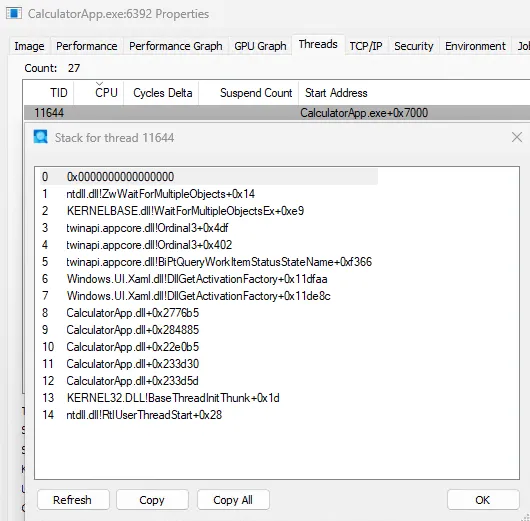
To see how this looks in the tools — whether symbols are loaded or not — we’ll look at it in the Process Explorer tool. The stack in Process Explorer without symbols looks like this:
After configuring, you can see how symbols are being loaded:
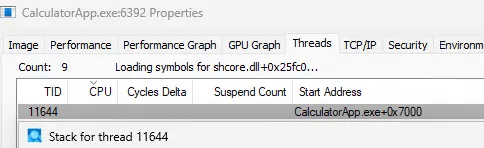
This can take a moment, then the dialog opens:
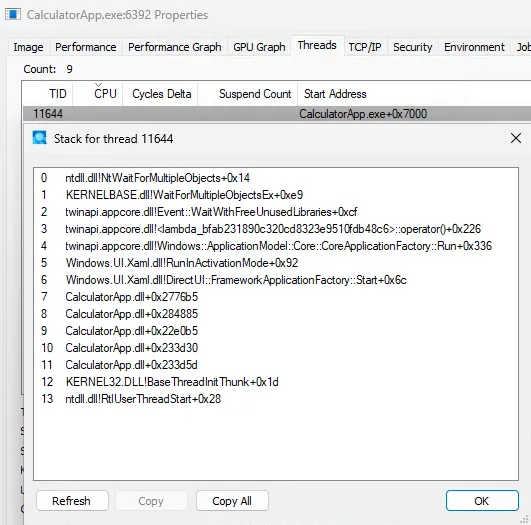
You’ll notice that for CalculatorApp.dll itself, we don’t see any additional information. But for other modules, there is additional information like twinapi.appcore.dll.
Why don’t we see additional information for CalculatorApp.dll?
The reason is that Microsoft doesn’t provide public symbols for it.
Configuring Symbols
Two essential configurations need to be considered:
- The correct
dbghelp.dll - The correct configuration of the symbol path(s)
dbghelp.dll
Yarden Shafir’s Twitter Post describes the issue that the dbghelp.dll in C:\Windows\System32 is not functional (the actual culprit is the missing symsrv.dll).
The usual approach is to install the Windows SDK. In the installation GUI, you only need to select and install Debugging Tools for Windows.
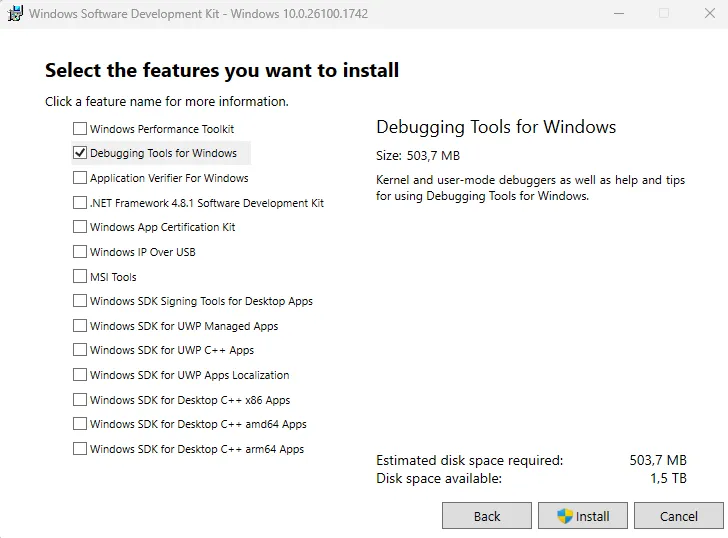
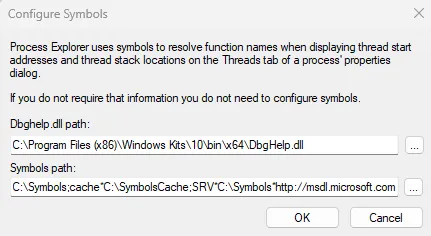
After that, you can select the correct dbghelp.dll in Process Explorer, for example (C:\Program Files (x86)\Windows Kits\10\Debuggers\x64\).
What about other tools?
Most other programs already have the correct configuration — only the symbol path usually still needs to be configured.
If there are other tools that require the dbghelp.dll configuration, let me know.
NT_SYMBOL_PATH
To configure the correct symbol paths, it’s recommended to set the NT_SYMBOL_PATH environment variable. The reason is that many troubleshooting tools use this environment variable to find the configured symbol servers. This often saves you from having to configure each tool individually.
Details can be found, for example, from Microsoft: Symbol Path
A good starting value for the environment variable would be:
SRV*C:\Symbols*http://msdl.microsoft.com/download/symbolsSymbol Servers
A good list of symbol servers has been compiled by Bruce Dawson and can be found in this blog post: Creating a Public Symbol Server, Easily
An example of including multiple symbol servers:
SRV*C:\Symbols*http://msdl.microsoft.com/download/symbols;SRV*C:\Symbols*https://chromium-browser-symsrv.commondatastorage.googleapis.comPrivate Symbols vs Public Symbols
As a system administrator who typically deals with third-party programs (no access to source code), we will almost always be working with so-called Public Symbols. These symbols contain essential information but may not include the correct function names as they appear in the source code, and certain information may be missing.
In contrast, Private Symbols are available when the software including source code is accessible. These are often used implicitly (Visual Studio Debugging).
A more detailed comparison can be found here: Public and Private Symbols