Table of contents
Open Table of contents
Introduction
In CVAD version 2103, a new feature called NaturalReboot was released. The release notes state:
Another restart duration option is available when using PowerShell to create a machine restart schedule. The
UseNaturalRebootoption restarts all machines after draining all sessions. When the restart time is reached, machines are put into the drain state and are restarted when all sessions are logged off. See Restart after drain.
The idea is to reboot the servers without actively logging off users, but instead waiting until there are no more users on the server.
Prerequisites
What are the prerequisites for the feature to work?
- The machine must be “power managed”
- The Delivery Controllers must be version 2103 or higher
- The feature must be configured via PowerShell
Configuration
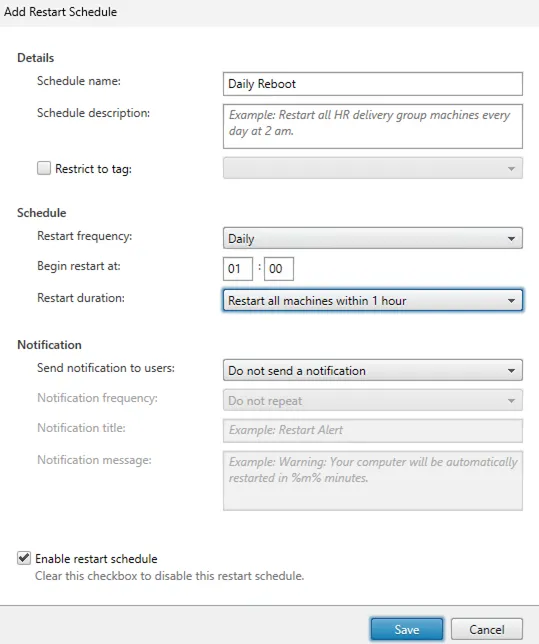
We start with the classic Restart Schedule:
The general prerequisites are:
- Restart frequency: Daily
- Begin restart at: 01:00 (am)
- Restart duration: Restart all machines within 1 hour
- Send notification to users: Do not send a notification
All the functionality discussed below applies to the configuration shown above.
Enabling the NaturalReboot Feature
How can you enable the NaturalReboot feature for the restart schedule described above?
There are different ways to achieve this; I use the following approach:
Selecting the RebootSchedule to enable NaturalReboot
> Get-BrokerRebootScheduleV2 -DesktopGroupName "DG Server 2022"

Active                : False
Day                   :
DayInMonth            :
Description           :
DesktopGroupName      : DG Server 2022
DesktopGroupUid       : 2
Enabled               : True
Frequency             : Daily
FrequencyFactor       : 1
IgnoreMaintenanceMode : False
MaxOvertimeStartMins  : 0
MetadataKeys          : {}
MetadataMap           : {}
Name                  : Daily Reboot
RebootDuration        : 60
RestrictToTag         :
StartDate             :
StartTime             : 01:00:00
Uid                   : 1
UseNaturalReboot      : False
WarningDuration       : 0
WarningMessage        :
WarningRepeatInterval : 0
WarningTitle          :
WeekInMonth           :
The -DesktopGroupName parameter is used to specify the Delivery Group and returns all restart schedules.
In our case, we only have one reboot schedule. So we can leave the Get- query as is.
Enable UseNaturalReboot
Get-BrokerRebootScheduleV2 -DesktopGroupName "DG Server 2022" | Set-BrokerRebootScheduleV2 -UseNaturalReboot $trueNo error message is a good sign.
Verifying the setting is enabled
> Get-BrokerRebootScheduleV2 -DesktopGroupName "DG Server 2022"

Active                : False
Day                   :
DayInMonth            :
Description           :
DesktopGroupName      : DG Server 2022
DesktopGroupUid       : 2
Enabled               : True
Frequency             : Daily
FrequencyFactor       : 1
IgnoreMaintenanceMode : False
MaxOvertimeStartMins  : 0
MetadataKeys          : {}
MetadataMap           : {}
Name                  : Daily Reboot
RebootDuration        : 60
RestrictToTag         :
StartDate             :
StartTime             : 01:00:00
Uid                   : 1
UseNaturalReboot      : True
WarningDuration       : 0
WarningMessage        :
WarningRepeatInterval : 0
WarningTitle          :
WeekInMonth           :
That’s all. It’s very easy to enable (and hopefully there will be a checkbox in Studio one day).
How does the feature work?
Initially, I had trouble understanding how the feature is supposed to work. The publicly available documentation is unfortunately not very extensive. Thanks to Citrix Support who helped me and explained a few things.
Okay, let’s get started…
There are three scenarios I’m thinking of:
- 0 sessions on both VDAs when the reboot schedule starts.
- 0 sessions on one VDA and 1 session on the other VDA when the reboot schedule starts. The session is logged off during the Reboot Duration Time.
- 0 sessions on one VDA and 1 session on the other VDA when the reboot schedule starts. The session is logged off after the Reboot Duration Time.
Scenario 1: 0 sessions on both VDAs
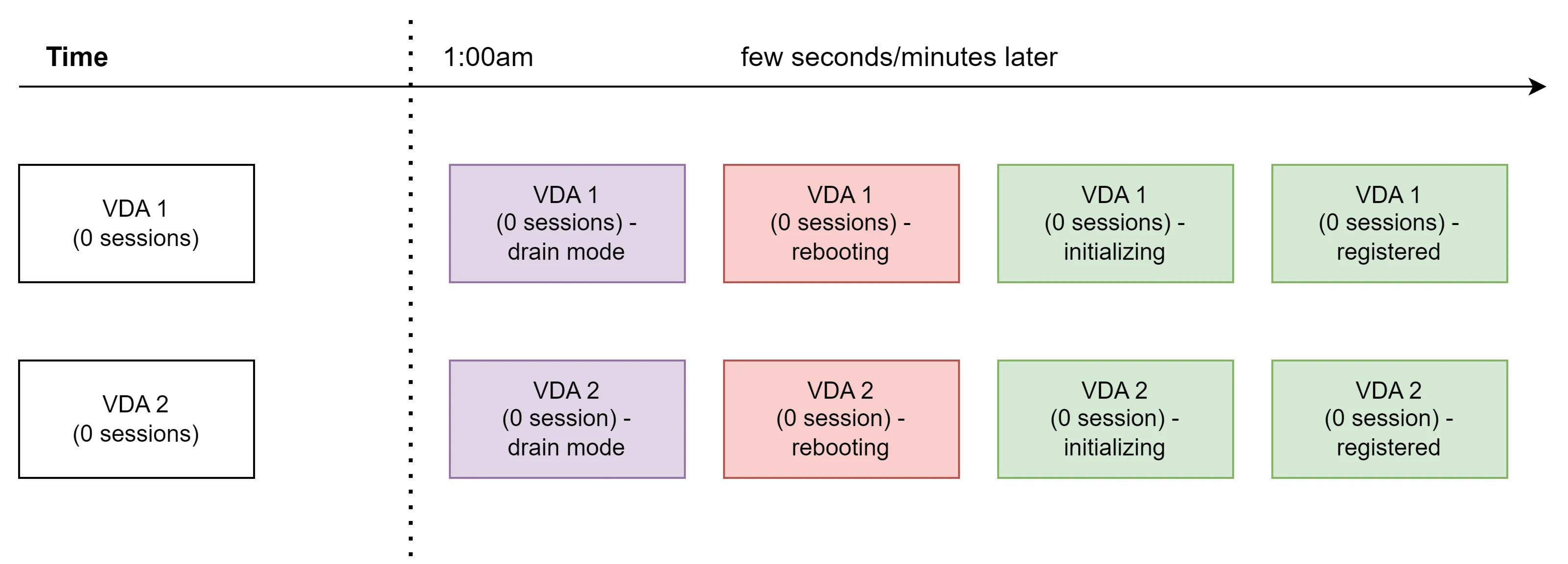
In the image above, two things are interesting:
- Drain mode
- Simultaneous rebooting
The Citrix article Reboot Schedule Internals has a few words about drain mode:
Firstly, all VDAs in the phase are put into drain mode; this prevents new sessions being launched but allows existing sessions to be reconnected.
The “Citrix drain mode” has nothing to do with “Microsoft drain mode”. Drain mode isn’t really important for the first scenario because the system reboots immediately anyway, but it will become important later.
\
If you compare the behavior shown above with the -UseNaturalReboot $false scenario, you’ll see that during Natural Reboot, the machines reboot simultaneously.
This means the Delivery Group is unavailable for a few minutes (depending on how long the machines take to register again). I would prefer the reboots to be staggered, and that problem can be solved with tags and two reboot schedules. But in our scenario (one restart schedule for all machines), the behavior is as shown above. Fundamentally though, we want to enable NaturalReboot because users are often still logged in.
Scenario 2: 1 session on the VDA but the user logs off within the Reboot Duration Time

Okay, let’s move to a more advanced scenario. We trigger the reboot schedule at 1 AM, but a user is still logged in on one VDA. Our goal is to reboot without logging off the existing session — and that’s where Natural Reboot becomes practical.
VDA 1 behaves as in Scenario 1.
VDA 2 enters the Citrix drain state and waits until the user has logged off. Once the user has logged off (within the Reboot Duration Time), the VDA is also rebooted (almost seamlessly).
Now let’s talk about availability.
When VDA 1 has rebooted and is registered again, a new user will be connected to VDA 1. Why? Because VDA 2 is still in drain mode.
But what happens if a user wants to start a session at 01:05 and let’s say VDA 1 is still unregistered? The user connects to VDA 2. In this scenario, a user session is always established and we have no downtime.
The small “downside” is that now two users need to log off before VDA 2 is rebooted.
Scenario 3: 1 session on the VDA but the logoff happens after the Reboot Duration Time

The last scenario is when the user logs off after the Reboot Duration Time. In my tests, however, the behavior was the same as in Scenario 2. The machine simply reboots when the session count reaches 0.
In my tests, it didn’t matter whether it was within the Reboot Duration Time or beyond it.
In Citrix Studio, you can display the status of machines to see whether they have been rebooted or not. To do this, show the “Scheduled Reboot” column in the respective Delivery Group. If the status is None, the machine has been successfully rebooted. If the status is Natural, the machine is still pending a reboot.
Conclusion
Natural Reboot is a cool feature, and I could imagine that if there were an integration in Studio, more Citrix admins would try it out. Some things are not yet super intuitive (e.g., the Reboot Duration Time makes no difference), and perhaps that’s the reason it hasn’t been integrated into Studio yet.